Laptop Overheating: Causes, Dangers and Professional Fixes
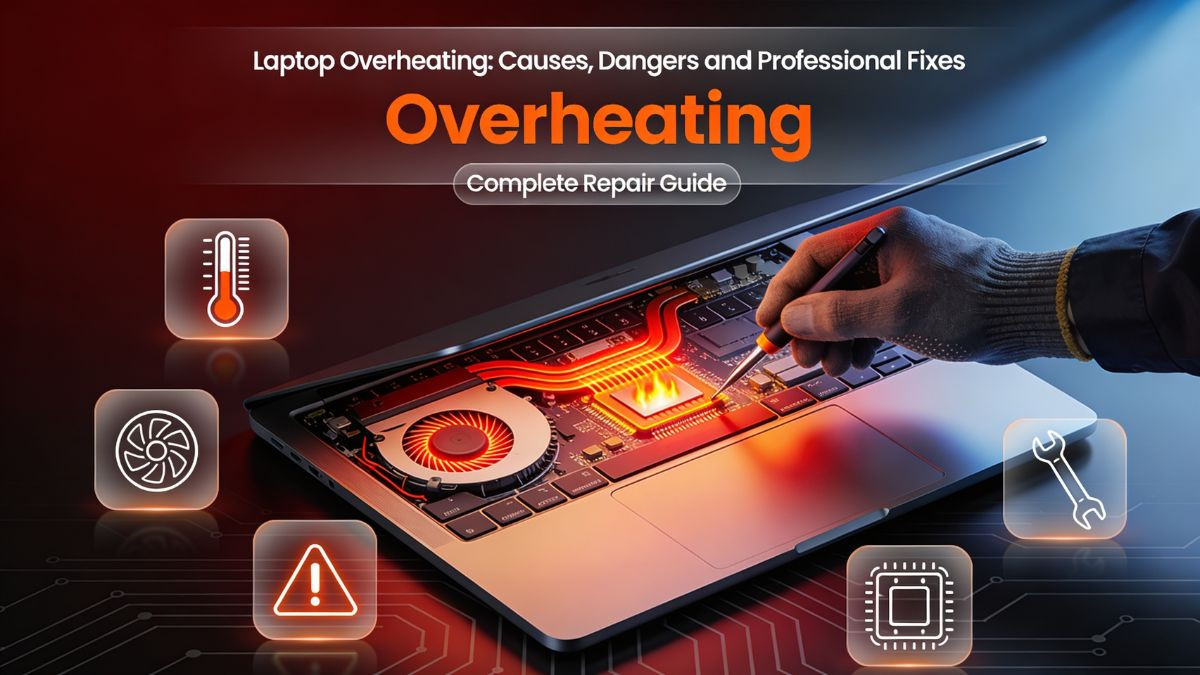
A laptop that runs hot is not simply uncomfortable to use — it is a device that is actively working against itself. Heat is the single most destructive force in consumer electronics, and laptops are uniquely vulnerable because of how much powerful hardware they pack into a thin, compact chassis with limited airflow and cooling capacity. When a laptop's internal temperature climbs beyond safe operating thresholds, the consequences can range from frustrating performance drops to permanent, irreversible hardware damage.
Laptop overheating is one of the most frequently reported problems encountered in professional laptop repair. It affects devices across every price tier, from budget machines to high-performance workstations and gaming rigs. No manufacturer is immune, and no laptop is designed to run indefinitely without some form of maintenance that supports the cooling system's ability to function properly.
What makes overheating particularly concerning is that its underlying causes are often invisible. A laptop that feels uncomfortably hot to the touch may look perfectly fine from the outside. There are no cracked screens, no obvious damage, no warning lights. The problems are happening internally — dust accumulating in vents, thermal paste drying out on the processor, a fan bearing wearing down — and by the time the symptoms become obvious enough to act on, some degree of damage may already have occurred.
This guide covers the full picture of laptop overheating: what causes it, what it does to a device over time, how to recognize the warning signs, and what professional and practical solutions are available. Whether the laptop in question is used for everyday productivity, creative work, or intensive gaming, understanding how to manage and repair overheating issues is essential for protecting the investment the device represents.
How a Laptop's Cooling System Works
Before examining what goes wrong with a laptop's thermal management, it helps to understand how the cooling system is designed to work under normal operating conditions. A laptop's cooling architecture is a carefully engineered system that must remove heat generated by several high-output components — the CPU, GPU, voltage regulators, and memory modules — within a space far more constrained than what a desktop computer enjoys.
The centerpiece of most laptop cooling systems is the heat pipe network. Heat pipes are sealed copper or aluminum tubes filled with a small amount of liquid — typically distilled water or a specialized coolant — that evaporates when it contacts a hot surface. The vapor travels along the pipe to a cooler section, where it condenses back into liquid and releases the absorbed heat. This process is passive and continuous, moving heat away from critical components like the CPU and GPU without requiring any power of its own.
The heat pipes connect the processor and GPU die to one or more heat sinks — flat metal structures with thin fins that increase the surface area available for heat dissipation. One or more cooling fans draw air through these fins and exhaust it through vents typically located along the sides, back, or bottom of the chassis. This creates a continuous airflow path that carries heat out of the device and replaces it with cooler ambient air drawn in through intake vents.
The thermal interface between the processor die and the base of the heat pipe is filled with thermal paste — a thermally conductive compound that eliminates microscopic air gaps between the two metal surfaces. Even surfaces that appear smooth to the naked eye have microscopic imperfections. Air trapped in those gaps insulates the heat rather than conducting it away. Thermal paste fills those gaps, ensuring efficient heat transfer from the chip to the heat pipe. Without it, or with degraded paste, the heat pipe cannot receive heat effectively — and the processor temperature rises dramatically even under light workloads.
This entire system is designed to maintain the laptop's internal temperatures within safe operating ranges: typically below 85°C for sustained CPU workloads and below 90–95°C for brief peak loads. When any part of this chain breaks down — when vents clog, fans fail, thermal paste dries, or heat sinks become impacted with dust — the cooling system's ability to remove heat drops, and laptop temperature climbs toward levels that trigger safety responses or cause outright hardware damage.
The Most Common Causes of Laptop Overheating
Understanding the root causes of laptop overheating is the first step toward choosing the right solution. Several distinct causes exist, and they sometimes occur simultaneously, compounding the thermal problem significantly.
Laptop Overheating Causes Overview
| Cause | Frequency | Severity | DIY Fix Possible? |
|---|---|---|---|
| Dust-clogged vents and fan | Very common | High | Partially (compressed air) |
| Degraded or dried thermal paste | Very common | Very high | With experience and tools |
| Laptop fan failure | Common | Very high | Requires replacement |
| Blocked intake/exhaust vents | Common | Moderate | Yes (usage habits) |
| High ambient temperature | Common | Moderate | Yes (environment) |
| Software/OS causing CPU overload | Common | Moderate | Yes (software fixes) |
| Overheating laptop battery issue | Moderate | High | Professional recommended |
| Faulty or damaged heat sink | Less common | Very high | Professional required |
| Laptop motherboard overheating | Less common | Severe | Professional required |
| GPU under heavy sustained load | Common in gaming | High | Partially (software limits) |
Dust accumulation is by far the most prevalent cause of laptop overheating across all device types and age groups. Laptops draw in air continuously during operation, and that air carries microscopic particles — dust, lint, pet dander, skin cells — that accumulate on the fan blades, heat sink fins, and intake grilles over time. Even in relatively clean environments, a laptop used daily can accumulate enough dust within one to two years to meaningfully reduce airflow through the cooling system. In environments with carpeted floors, pets, or higher ambient dust levels, this timeline is much shorter.
Degraded thermal paste is the second most impactful cause. Thermal paste does not last forever. Most manufacturers apply paste at the factory that begins to dry out, crack, or separate after two to four years of normal use — and sooner under high-heat conditions. Once the paste degrades, the thermal interface between the processor and the heat pipe becomes inefficient, and CPU temperatures climb noticeably even under moderate workloads. Laptop thermal paste replacement is one of the most effective single interventions available for a laptop that has been running hot for an extended period.
A laptop fan not working is a clear and serious cause that requires prompt attention. Fans fail for several reasons: bearing wear, debris lodged in the fan assembly, electrical failure, or connector damage. When a fan stops spinning or runs significantly below its rated speed, the heat sink receives no airflow, and heat builds rapidly. A laptop with a completely failed fan can reach thermal shutdown temperatures within minutes under load.
Software-related causes are worth including because they are frequently overlooked. A runaway process — a misbehaving application, a poorly optimized driver, a malware process consuming CPU resources — can push processor utilization to 100% continuously, generating far more heat than the cooling system is designed to handle under sustained conditions. Laptop overheating after a system update is a particularly common presentation of this problem, where a new driver or background service begins consuming excessive resources.
Recognizing the Symptoms of an Overheating Laptop
Overheating manifests in ways that are sometimes subtle and sometimes dramatic. Recognizing these overheating laptop symptoms accurately helps determine the urgency and appropriate response.
The most physically obvious symptom is excessive heat on the laptop's exterior surfaces. It is normal for a laptop to feel warm during use, particularly around the keyboard deck and bottom panel. However, when the bottom of the laptop becomes uncomfortably hot to hold, when the exhaust vent blows air that is noticeably very hot rather than warm, or when specific areas of the chassis become too hot to touch for more than a few seconds, the internal temperatures have exceeded acceptable operating ranges.
Loud or unusual fan noise is another clear indicator. A laptop fan that suddenly runs at its maximum speed for extended periods — even during light tasks like web browsing or document editing — is responding to elevated internal temperatures. The fan is doing its job, but the fact that it is running at full capacity during tasks that should not require it suggests the cooling system is struggling. Conversely, a fan that rattles, grinds, or whines intermittently may be physically failing, which will worsen rather than improve the thermal situation.
Laptop overheating and shutting down unexpectedly is one of the most disruptive symptoms. Modern laptops are equipped with thermal protection mechanisms that trigger an emergency shutdown when internal temperatures reach a critical threshold — typically around 100–105°C for most processors. This shutdown protects the hardware from catastrophic damage, but it also means unsaved work is lost and the underlying cause remains unaddressed. If a laptop shuts down repeatedly during use, particularly during demanding tasks, thermal protection is almost certainly being triggered.
A slow laptop overheating problem is the symptom that most confuses users. When processors reach unsafe temperatures, the operating system and hardware work together to reduce CPU and GPU clock speeds — a process known as thermal throttling. The laptop does not shut down, but it becomes dramatically slower. Tasks that previously completed in seconds take minutes. Video playback stutters. Applications feel unresponsive. Users often attribute this slowness to software problems, aging hardware, or viruses, when in reality the laptop overheating performance drop is the direct cause. Addressing the thermal issue restores the device's original performance without any software intervention.
Real Dangers of Ignoring Laptop Overheating
The consequences of persistent overheating extend well beyond discomfort and inconvenience. Sustained elevated temperatures cause progressive, cumulative damage to virtually every component inside a laptop, and this damage is often irreversible.
The CPU and GPU are the most immediately vulnerable components. Both chips are manufactured from silicon, which degrades over time through a process called electromigration — where high temperatures cause metal atoms in the chip's microscopic circuitry to migrate out of position, gradually disrupting the electrical paths that make computation possible. Heat accelerates this process dramatically. A processor that runs at 95–100°C consistently will degrade measurably faster than one that operates at 70–75°C. This translates to reduced performance over time and, in severe cases, early chip failure that renders the laptop non-functional.
Laptop motherboard overheating is a particularly serious consequence of sustained high temperatures. The motherboard is the central circuit board that connects every component in the laptop. When it overheats repeatedly, solder joints — the tiny points where components are attached to the board — can crack, cold-solder, or separate entirely. GPU chips on laptops are especially prone to this type of failure because they run hot and are mounted directly to the motherboard. A laptop that suddenly produces no image on its screen despite powering on normally has often suffered exactly this type of solder failure caused by prolonged thermal stress.
The laptop battery is also significantly affected by heat. Lithium-ion batteries degrade faster when exposed to elevated temperatures. A battery in a consistently overheating laptop may reach the end of its useful life in 12–18 months rather than the two to three years it would achieve under normal thermal conditions. The overheating laptop battery issue creates a compounding problem — a degraded battery may itself contribute to thermal issues as its internal resistance increases and it generates more heat during charging and discharge cycles.
RAM modules, storage drives, and even the display circuitry all experience accelerated wear when operating above their intended temperature ranges. SSDs, in particular, have their own thermal protection mechanisms that throttle read and write speeds when temperatures climb, contributing to additional perceived slowness on top of the CPU throttling. In extreme cases, prolonged overheating can cause permanent data loss if a storage drive is damaged by heat.
The financial stakes are significant. Addressing a laptop overheating issue through professional cleaning and thermal paste replacement might cost $50 to $100. Replacing a motherboard damaged by years of thermal neglect can cost $200 to $500 or more — and in some cases exceeds the laptop's current market value, making it more economical to replace the device entirely. Prevention and early intervention are always more financially sound than delayed action.
Laptop Overheating Troubleshooting: What to Check First
Before seeking professional help, several software and environmental checks can help diagnose the severity of the overheating problem and identify whether any quick fixes are available.
Laptop Overheating Troubleshooting Checklist
| Check | Tool/Method | What It Reveals |
|---|---|---|
| CPU/GPU temperature monitoring | HWMonitor, Core Temp, MSI Afterburner | Real-time temperature readings |
| Fan speed monitoring | HWMonitor, SpeedFan | Whether fans are spinning at correct RPM |
| CPU usage by application | Task Manager (Windows), Activity Monitor (Mac) | Processes causing high CPU load |
| Thermal throttling status | ThrottleStop, HWInfo64 | Whether CPU is actively throttling |
| Vent inspection | Visual check + feel | Physical blockage or dust at vents |
| Surface placement | Observe usage habits | Whether airflow is restricted |
| Recent software changes | System event logs | Updates or apps causing CPU overload |
| Battery condition | Built-in diagnostics | Whether battery is contributing to heat |
The first and most useful step in laptop overheating diagnosis is installing a temperature monitoring tool. Software like HWMonitor, Core Temp, or HWInfo64 displays real-time temperature readings for the CPU, GPU, and other components. Checking these readings during typical use and during demanding tasks gives an accurate picture of how hot the laptop actually runs. Temperatures consistently above 85°C during normal use and above 95°C during gaming or video rendering are clear indicators that the cooling system needs attention.
Checking CPU usage through the Task Manager on Windows or Activity Monitor on macOS can quickly reveal whether a software process is the cause. If the CPU is running at 70–100% utilization while the laptop is doing nothing beyond sitting at the desktop, a background process is consuming resources and generating excessive heat. Identifying and stopping or uninstalling the offending application can immediately reduce temperatures without any hardware intervention.
Physical inspection of the intake and exhaust vents is a simple but valuable step. Hold the laptop in a position where the vents are visible and check whether dust is visibly matted against the grilles. If exhaust airflow feels weak despite the fan running, significant internal dust buildup is almost certain. Using a can of compressed air to blow through the intake and exhaust vents — without opening the device — can temporarily improve airflow, though this moves dust within the device rather than removing it and is only a short-term measure.
Checking the surface on which the laptop rests is also worthwhile. Using a laptop on a bed, couch, pillow, or carpet covers the intake vents entirely, forcing the cooling system to work with no fresh air supply. This alone can push temperatures significantly higher than intended. Using a hard, flat surface or a dedicated laptop stand restores normal airflow and can noticeably reduce operating temperatures without any repair work.
Laptop Thermal Paste Replacement: Why It Matters and How It's Done
Laptop thermal paste replacement is one of the most impactful repairs available for an overheating laptop, and it is one that is frequently underestimated in its effect. A laptop that has been running for two or more years and has never had its thermal paste replaced is almost certainly operating with a degraded thermal interface — and replacing that paste can reduce CPU temperatures by 15–30°C in cases where the old paste has fully dried or cracked.
The thermal paste used in laptops varies by manufacturer. Some use high-quality silver-based pastes that maintain their properties for longer periods. Others use standard silicone-based compounds that degrade within two to three years of normal use. Gaming laptops and other high-heat devices tend to experience faster paste degradation due to the higher sustained temperatures their components generate.
Thermal Paste Replacement Process
The process of replacing thermal paste requires opening the laptop, which varies in complexity from model to model. Here is a general overview of how a professional technician approaches this repair:
Step 1: Complete disassembly to access the cooling system.
The laptop must be opened — usually by removing the bottom panel after extracting the appropriate screws. On some models, accessing the CPU heat sink requires removing additional internal components such as the battery, RAM modules, or storage drives. The specific disassembly path varies significantly by manufacturer and model.
Step 2: Remove the heat sink assembly.
The heat sink is secured to the CPU and GPU with screws that should be removed in a cross pattern to ensure even pressure release. The heat sink is then carefully lifted away from the processors. On older laptops with severely degraded paste, the heat sink may be partially adhered to the chip by the dried compound.
Step 3: Clean the old thermal paste.
Isopropyl alcohol at 90% concentration or higher, applied with a lint-free cloth or cotton swab, is used to remove all traces of old paste from both the processor die and the base of the heat sink. This step must be thorough — any residue left behind will impair the effectiveness of the new paste.
Step 4: Apply new thermal paste.
A small, precise amount of high-quality thermal paste — approximately the size of a grain of rice to a small pea, depending on the die size — is applied to the center of the processor die. The most common application method is a single dot in the center, which spreads to cover the die surface evenly when the heat sink is pressed into place. Excess paste can flow into the socket or cause other issues, so precision matters.
Step 5: Reattach the heat sink.
The heat sink is placed back onto the processor and the screws are tightened in a cross pattern again, gradually and evenly, to ensure flat, consistent contact pressure across the entire die surface. Uneven pressure leaves air pockets and reduces thermal efficiency.
Step 6: Reassemble and test.
All removed components are reinstalled, the bottom panel is secured, and the laptop is powered on. Temperature monitoring software is run to verify the improvement in thermal performance. A successful repaste typically shows immediate and significant temperature reductions.
This process, while conceptually straightforward, requires comfort with disassembly, clean-room habits, and the right tools. A laptop hardware overheating issue caused by degraded paste is best addressed by a professional laptop repair technician unless the person performing the work has genuine experience with laptop internals.
Laptop Fan Replacement and Cooling System Repair
When a laptop fan not working situation arises, the repair goes beyond cleaning or paste replacement. A failed fan must be physically replaced with a functioning unit, and this requires sourcing the correct replacement part for the specific laptop model.
Fans in laptops are model-specific components. Unlike desktop fans, which largely follow standard sizing conventions, laptop fans are designed to fit within precise chassis dimensions and connect through proprietary connectors. A fan designed for a Dell Inspiron 15 will not fit a Lenovo ThinkPad or HP Pavilion. This means that sourcing the correct replacement requires knowing the exact laptop model number — usually found on a label on the bottom of the device — and obtaining a part from a reputable supplier.
Laptop Fan Conditions and Recommended Actions
| Fan Condition | Symptom | Recommended Action |
|---|---|---|
| Partially clogged | Loud, runs hot, airflow reduced | Professional cleaning service |
| Bearing worn | Rattling or grinding noise | Fan replacement service |
| Completely failed | No airflow, immediate overheating | Urgent fan replacement |
| Running too slowly | High temps, fan speed below spec | Diagnostic + possible replacement |
| Disconnected | No fan noise, extreme heat | Reconnect or replace |
| Running at max always | Normal at-load behavior | Investigate root thermal cause |
Laptop fan replacement service involves disassembling the device to the level required to access and remove the fan assembly. On most laptops, the fan is located adjacent to the heat sink and connects to the motherboard via a small multi-pin ribbon cable. The old fan is removed, the replacement is connected, and the device is reassembled. Testing immediately after replacement confirms that the fan spins correctly and responds to temperature changes as expected.
In some cases, the laptop cooling system repair extends beyond the fan itself. The heat sink — the finned metal structure through which the fan pushes air — can become so impacted with compressed dust over years of use that it forms an almost solid mat of debris in the fin channels. Compressed air from a can is sometimes insufficient to dislodge this buildup. Professional cleaning using a thin brush, compressed air at higher pressure, or in extreme cases, washing the heat sink with isopropyl alcohol and allowing it to dry completely before reinstallation, may be necessary.
Laptop heat sink repair in cases of physical damage — bent fins, cracked heat pipes, or a warped base plate — typically requires replacement of the entire heat sink and heat pipe assembly. Damaged heat pipes that are kinked or cracked cannot move coolant effectively and will prevent the system from dissipating heat regardless of how clean the fan and fins are.
Professional Laptop Overheating Repair: What the Process Looks Like
When a laptop arrives at a professional laptop repair shop for overheating issues, the diagnostic and repair process follows a structured workflow designed to identify all contributing factors rather than simply addressing the most obvious one.
Professional Repair Workflow
| Stage | Action | Purpose |
|---|---|---|
| Initial intake | Customer symptom description + visual inspection | Establish baseline and obvious issues |
| Diagnostic testing | Temperature monitoring under load | Quantify severity of overheating |
| Fan speed testing | Hardware diagnostics | Confirm fan operation and speed |
| Internal inspection | Disassembly and visual check | Assess dust buildup, paste condition, damage |
| Cleaning | Professional laptop internal dust cleaning | Restore airflow |
| Thermal paste replacement | Remove old paste, apply new compound | Restore thermal interface efficiency |
| Fan inspection/replacement | Test and replace if needed | Ensure cooling airflow is maintained |
| Post-repair testing | Temperature monitoring under load | Confirm repair effectiveness |
| Documentation | Record temperatures before and after | Provide customer with repair data |
| Reassembly and warranty | Device closed, warranty issued | Repair complete with accountability |
A thorough professional laptop overheating repair service begins with objective measurement. Technicians run the laptop under controlled load conditions — using stress-testing tools that push the CPU and GPU to maximum utilization — while logging temperatures at regular intervals. This establishes a clear before-repair baseline that can be compared against post-repair readings to demonstrate the effectiveness of the intervention.
The internal inspection that follows disassembly often reveals the full scope of the problem. Dust accumulation that appears minor from the outside can be severe internally — particularly around the heat sink fins, which act as a filter that traps particles carried by the airflow. Technicians assess the condition of the thermal paste, the structural integrity of the heat pipes, the fan bearing condition, and the general cleanliness of all internal components before determining which repairs are warranted.
One advantage of professional laptop overheating diagnosis is that it can identify secondary issues that the customer may not be aware of. A laptop brought in for overheating may also reveal a battery that is swelling slightly, a charging port that is partially failing and generating excessive heat during charging, or a GPU solder issue beginning to manifest. Catching these issues alongside the primary thermal repair prevents the need for a second service visit in the near term.
Gaming Laptop Overheating: Special Considerations
Gaming laptops present a uniquely demanding thermal challenge. They are designed to house desktop-class or near-desktop-class CPUs and GPUs within chassis that, despite being larger than standard laptops, still impose significant airflow constraints. The thermal output of a high-performance gaming laptop under full load can exceed 150 watts from the CPU and GPU combined — a heat load that would challenge even a well-maintained cooling system.
Gaming laptop overheating during extended sessions is one of the most common complaints in laptop repair for this category of device. The problem is not always a failure — sometimes it is a factory design limitation that becomes apparent only after sustained gaming sessions lasting hours rather than minutes. However, when thermal paste has degraded, fans have accumulated dust, or the gaming laptop has been used on surfaces that restrict airflow, the temperatures climb beyond even the elevated thresholds that gaming hardware is rated for.
Thermal throttling is particularly impactful on gaming laptops. A CPU or GPU that begins throttling mid-game will cause dropped frame rates, stuttering, and in some cases a complete game crash or shutdown. Players often attribute these symptoms to driver problems or game bugs, when in reality the laptop overheating during gaming is throttling the hardware to prevent damage. A comprehensive professional laptop cooling repair can restore the system to running at its full rated performance throughout extended gaming sessions.
Many gaming laptop manufacturers also apply relatively conservative factory thermal paste — prioritizing quiet operation and longevity of the compound over maximum thermal performance. Enthusiasts and repair professionals frequently repaste gaming laptops with premium thermal compounds such as Thermal Grizzly Kryonaut or similar high-performance materials, achieving temperature reductions of 10–20°C compared to factory paste even in a fairly new device. For a gaming laptop that is still within its first year of use but already running hot, this is often a worthwhile investment.
Undervolting is another technique specific to gaming laptop thermal management. By slightly reducing the voltage supplied to the CPU — typically through software tools like Intel's XTU (Extreme Tuning Utility) or AMD's Ryzen Master — it is possible to reduce heat output without sacrificing meaningful performance. This is a software-level intervention that carries minimal risk when done conservatively and can serve as a complement to hardware cleaning and paste replacement rather than a replacement for it.
Laptop Overheating While Charging: A Separate Problem Worth Understanding
Laptop overheating while charging is a symptom that sometimes has a different root cause than standard operational overheating. While a hot laptop during charging could simply be the natural consequence of combined computing load and battery charging activity, it can also indicate a specific issue with the charging circuitry, the battery itself, or the power adapter.
When a laptop charges, the battery management circuit draws power from the adapter and manages its delivery to the battery cells. This process generates some heat as a byproduct — this is normal and expected. A battery that is in good health will absorb charge efficiently and generate relatively little excess heat. However, a battery that has degraded significantly has increased internal resistance, meaning more energy is wasted as heat during the charging process. This wasted energy manifests as elevated temperatures — both in the battery itself and in the surrounding components, including the area around the charging circuit on the motherboard.
An overcharging situation caused by a faulty battery management IC on the motherboard can cause the charging circuit to continue drawing power past full capacity, generating persistent heat even when the battery is nominally showing 100%. This is a more serious hardware fault that requires professional diagnosis and, in some cases, motherboard-level repair or battery replacement.
The power adapter itself can also contribute. A failing adapter may deliver inconsistent or slightly elevated voltage, forcing the charging circuit to work harder to regulate input. Adapters that run very hot during normal operation — particularly third-party replacements that may not precisely match the original specifications — should be replaced with certified equivalents. Using an underpowered adapter forces the laptop to draw partly from the battery even while plugged in, creating a cycle of simultaneous charging and discharging that generates additional heat.
For anyone experiencing laptop overheating while charging on a consistent basis, the combination of a professional battery assessment and a charging port and battery repair evaluation is the appropriate course of action. Distinguishing between a battery issue and a charging circuit fault requires proper diagnostic tools and component-level expertise.
DIY Fixes vs Professional Laptop Repair: An Honest Assessment
There are several legitimate DIY interventions for laptop overheating, and it is worth being honest about which ones are effective and which ones fall short of addressing the real problem.
DIY vs Professional Laptop Overheating Repair
| Intervention | DIY Feasibility | Effectiveness | Risk Level | When to Choose |
|---|---|---|---|---|
| Compressed air through vents | Easy | Partial | Very low | First step, temporary relief |
| Laptop stand or cooling pad | Easy | Moderate | None | Good supplemental habit |
| Software optimization | Easy | Moderate | Low | When software causes overload |
| Thermal paste replacement | Moderate | Very high | Medium (if experienced) | With proper tools and knowledge |
| Fan cleaning (partial) | Moderate | Moderate | Low to medium | With appropriate tools |
| Fan replacement | Difficult | Very high | High (model-specific) | Professional strongly recommended |
| Heat sink repair/replacement | Very difficult | Very high | Very high | Professional required |
| Motherboard repair | Not feasible | N/A | Extreme | Professional only |
Compressed air through the external vents is the most accessible DIY step. It is readily available, inexpensive, and requires no disassembly. It is, however, a temporary measure at best. Compressed air blown through the vents can dislodge loose surface dust and improve airflow marginally, but it cannot reach the interior of the heat sink fins where the most significant buildup occurs. It also risks forcing dust deeper into the device rather than removing it. As a first step or emergency measure, it is reasonable. As a long-term solution, it is insufficient.
Laptop cooling pads — external accessories that sit beneath the laptop and add supplemental fan-driven airflow to the bottom panel — can reduce temperatures by 3–8°C in many cases. They are most effective on laptops with bottom-mounted intake vents. They do not address internal dust or paste degradation, but they can provide enough thermal headroom to extend the time before a professional cleaning is absolutely necessary.
Thermal paste replacement and fan replacement are technically within reach for experienced DIY enthusiasts, but they are not appropriate for most users. The risks of incorrect disassembly — cracking a plastic clip, stripping a screw, tearing a ribbon cable, or puncturing a battery — are genuine and can turn a moderate repair cost into a much more expensive one. For anyone who has not previously worked inside a laptop, a professional laptop repair and maintenance service delivers far better outcomes at a cost that is easily justified by the reduction in risk.
Laptop Overheating Repair Cost Breakdown
Understanding the typical costs associated with professional laptop overheating repair helps set realistic expectations and makes it easier to evaluate whether a repair quote is fair.
Laptop Overheating Repair Cost Guide
| Repair Type | Typical Cost Range | Turnaround Time | Notes |
|---|---|---|---|
| Professional internal dust cleaning | $40 – $80 | Same day to 1 day | Most common and impactful first repair |
| Thermal paste replacement only | $30 – $60 | Same day | Often bundled with cleaning |
| Cleaning + thermal paste (combined) | $60 – $120 | Same day to 1 day | Best value thermal repair package |
| Laptop fan replacement service | $60 – $150 | Same day to 2 days | Depends on part availability |
| Heat sink replacement | $80 – $200 | 1–3 days | Part cost varies by model |
| Full cooling system overhaul | $100 – $250 | 1–3 days | Cleaning, paste, fan, heat sink |
| Motherboard repair (thermal damage) | $150 – $500+ | 3–7 days | Severity-dependent |
| Battery replacement (overheating related) | $50 – $150 | Same day to 1 day | Depends on model |
For most laptops presenting with overheating issues that stem from regular use — dust buildup and degraded thermal paste — the combined cleaning and paste replacement service costing $60 to $120 delivers dramatic results. Temperature reductions of 20–35°C are achievable in many cases, which translates directly to restored performance, quieter fan operation, and significantly extended component lifespan.
The business laptop overheating fix context adds an additional layer to the cost consideration. For businesses relying on laptops for daily operations, the cost of downtime caused by an overheating, shutting-down machine far exceeds the cost of a professional repair. Investing in regular laptop cleaning service near me — ideally once every 12 to 18 months for heavily used devices — is a straightforward maintenance cost that prevents the much larger expense of hardware replacement or data recovery.
Preventing Laptop Overheating: Long-Term Maintenance Habits
Once a laptop's thermal issues have been professionally addressed, maintaining that performance requires some ongoing attention. Laptop overheating prevention is significantly easier than treating the consequences of long-term thermal neglect.
The single most impactful habit is using the laptop on hard, flat surfaces that allow the intake vents to draw air freely. Avoiding soft surfaces — beds, sofas, pillows, laps with clothing — for extended work sessions makes a measurable difference in operating temperatures. When using the laptop on a desk or table, a laptop stand that elevates the rear of the device can improve passive cooling by creating a better angle for airflow and convection.
Scheduling professional laptop internal dust cleaning annually or every 18 months is one of the best preventive maintenance investments available. A technician who opens the device, removes the accumulated dust from the heat sink and fan, and applies fresh thermal paste on each cleaning visit will keep the cooling system operating close to factory efficiency throughout the device's lifespan. This approach is similar in principle to regular oil changes in a vehicle — preventive maintenance that extends life and prevents expensive failures.
Monitoring temperatures periodically using a lightweight background utility provides early warning of developing thermal issues. If temperatures that were previously reading 70–75°C under load begin creeping toward 85°C or higher over a period of weeks, this is a signal that the cooling system needs attention before the situation deteriorates further.
Keeping the laptop's drivers, BIOS, and operating system updated is also relevant. Manufacturer BIOS updates frequently include improvements to fan control curves and thermal management algorithms. An outdated BIOS may be running fans at lower speeds than a current version would, or it may have inefficient power management settings that generate more heat than necessary. Applying updates as they become available ensures the laptop benefits from whatever thermal optimizations the manufacturer has refined since the device shipped.
Get Your Overheating Laptop Fixed by Experts Today
A laptop that runs too hot is not a minor annoyance to work around — it is a device that is actively being damaged with every hour of continued use at elevated temperatures. The longer a thermal problem goes unaddressed, the greater the risk of permanent hardware damage that could make a simple $80 repair turn into a $400 motherboard replacement or a complete device loss.
At Phone Repair Place, professional laptop overheating repair service covers the full range of thermal issues — from standard internal dust cleaning and thermal paste replacement to fan replacement, heat sink repair, and cooling system overhauls. Every repair begins with a thorough diagnostic evaluation that identifies all contributing causes rather than addressing only the obvious symptoms. This ensures that the device comes back operating at the temperatures it was designed to maintain, not just slightly improved.
Same-day service is available for most standard laptop overheating repairs, including cleaning and paste replacement. For repairs requiring specific replacement parts, the team works quickly to source the correct components and minimize turnaround time. Every repair is backed by a warranty covering parts and workmanship, because the service is not considered complete until the laptop is verified to be operating within safe thermal parameters.
Walk-ins are welcome without an appointment, and the team is available to answer questions, run a quick diagnostic assessment, and provide an honest, transparent quote before any work begins. For customers who prefer to plan ahead, appointments can be scheduled in advance.
Do not wait for an overheating laptop to cause permanent damage. Bring it in, call ahead, or visit the website to learn more about available laptop repair and maintenance services.
Phone Repair Place
3500 East-West Hwy STE 1417,
Hyattsville, MD 20782, United States
(202) 870-4914
https://phonerepairpgmall.com/
Frequently Asked Questions
What temperature is considered too high for a laptop CPU?
Most laptop CPUs are designed to operate safely up to around 95–100°C under peak loads, but sustained temperatures above 85°C during normal tasks are a clear sign that the cooling system is not functioning properly. If temperature monitoring software consistently shows readings above 90°C during everyday use like web browsing or document editing, a professional laptop overheating diagnosis and cooling system inspection is strongly recommended before permanent hardware damage occurs.
How often should thermal paste be replaced in a laptop?
Laptop thermal paste replacement is generally recommended every two to three years for average-use devices, and every one to two years for gaming laptops or devices subjected to consistently high workloads. Signs that paste replacement is overdue include a gradual increase in operating temperatures over time, more frequent fan activation at lower workload levels, and throttling behavior that was not previously present on the same device.
Can laptop overheating damage the motherboard permanently?
Yes — prolonged and repeated overheating is one of the most common causes of permanent laptop motherboard damage. Sustained high temperatures cause solder joints to crack, IC components to degrade, and GPU chips to separate from the board — all of which can render a laptop completely non-functional. Addressing a laptop overheating problem early through professional cleaning, thermal paste replacement, and fan service is far less expensive than motherboard repair or replacement after thermal damage has already occurred.
Is a laptop cooling pad effective for fixing overheating?
A laptop cooling pad can reduce operating temperatures by 3–8°C in many cases and is a useful supplement for laptops with bottom-mounted air intakes, but it does not address the root causes of overheating such as internal dust buildup or degraded thermal paste. It functions as a supportive tool rather than a solution, and should be used alongside — not instead of — professional laptop cooling repair when genuine thermal issues are present.
Why does my laptop overheat only while charging?
Laptop overheating while charging can indicate a degraded battery with high internal resistance generating excess heat during charge cycles, a faulty charging circuit on the motherboard delivering inconsistent power, or a third-party adapter not properly matched to the device's power requirements. If overheating during charging is consistent and accompanied by the adapter or battery feeling unusually hot, a professional assessment of both the battery and charging system is the appropriate next step.
How long does a professional laptop overheating repair take?
Most standard laptop overheating repairs — including internal dust cleaning and thermal paste replacement — are completed within the same day at a reputable repair shop, often in two to four hours. Fan replacement service typically takes the same day when parts are in stock. More complex repairs involving heat sink replacement or motherboard-level thermal damage assessment may require one to three business days depending on part availability and the extent of the damage identified during inspection.
Need This Problem Fixed Fast?
Bring your broken smartphone, tablet, or console to Phone Repair Place in Hyattsville, MD for quick diagnosis and same-day turnaround.