Laptop Charging Port Repair: Signs and Solutions
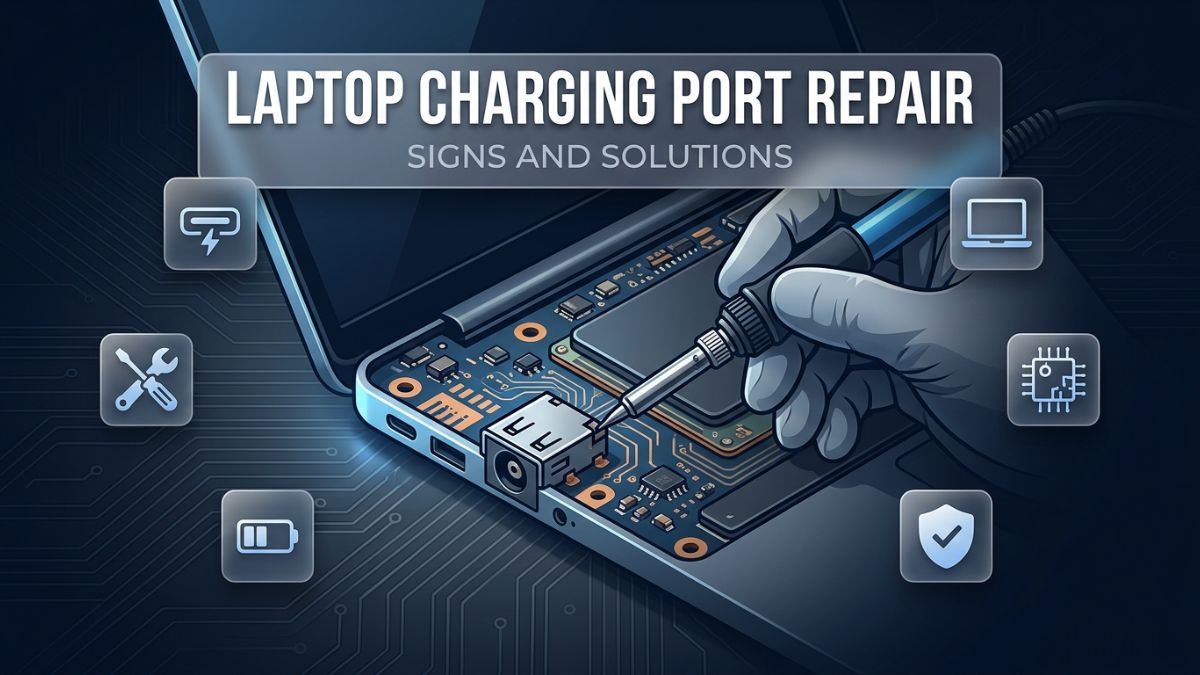
A laptop is only as useful as its ability to stay powered. The charging port, despite being one of the smallest components on any laptop, is also one of the most critical. It serves as the primary gateway for electrical power to enter the device, keeping the battery charged and enabling continuous operation. When that gateway fails — even partially — the consequences ripple through every aspect of how you use your laptop.
Charging port failures are among the most frequently reported hardware problems across all major laptop brands, including Dell, HP, Lenovo, Asus, Acer, Apple MacBook, and gaming laptops from manufacturers like Razer, MSI, and ASUS ROG. The problem is universal, and the cause is almost always the same: wear, tear, physical stress, and neglect over time. Yet despite how common this problem is, many laptop users do not recognize the warning signs until the damage has progressed significantly.
This article is written as a complete laptop charging port repair guide for anyone dealing with charging issues, whether the laptop is not charging at all, the charger fits loosely, or the port makes unusual sounds or delivers inconsistent power. The information here covers the root causes, visible and hidden symptoms, step-by-step troubleshooting methods, the difference between safe DIY fixes and situations that require professional repair, and a realistic breakdown of costs you can expect. Whether you are searching for a laptop charging port repair service near you or simply trying to understand what went wrong with your device, this guide will walk you through everything with clarity and practical detail.
Laptop Charging Port: What It Is and How It Works
Before addressing what goes wrong, it helps to understand what the charging port actually does and what it consists of. Most people see it as just a socket where the charger plugs in, but there is quite a bit of engineering involved in that small connector.
A laptop charging port, often referred to as a DC jack or power jack, is a physical connector mounted directly to the laptop's motherboard or to a dedicated power board that connects to the motherboard via a cable. When you plug your charger into the port, the connector bridges the external power supply with the laptop's internal power circuit. The DC jack receives alternating current that has been converted to direct current by the power adapter, and it routes that power either to the battery for charging or directly to the system components to keep the laptop running.
There are several different types of charging ports used across laptop brands. Barrel-style DC jacks are the most traditional, and they are still used on most Windows laptops from Dell, HP, Lenovo, Acer, and Asus. These have a cylindrical pin at the center of the socket that the charger's barrel connector slides over. The size and voltage rating of these jacks vary between manufacturers and even between models from the same brand.
USB-C charging ports have become increasingly common, particularly on thinner and more modern laptops. Many MacBook models use Apple's proprietary MagSafe or USB-C connectors, while a growing number of Windows laptops now support USB-C or Thunderbolt 4 charging. Gaming laptops, which require significantly higher wattage to power dedicated graphics cards and high-performance processors, typically still rely on proprietary barrel connectors due to the power delivery limitations of standard USB-C.
The mounting style of the DC jack also matters for repair purposes. Some jacks are soldered directly onto the motherboard, which makes repair more technically demanding. Others are connected through a short cable harness to a small daughter board, which makes replacement much easier. Knowing which type your laptop has can significantly affect the repair approach and the associated cost.
Common Causes of Laptop Charging Port Damage
Charging port damage rarely happens suddenly. In most cases, it is the result of repeated stress accumulation over months or years. Understanding the causes helps both in addressing the current problem and in preventing future damage after a repair is completed.
Physical stress is the leading cause of charging port failure. Every time you plug in or unplug your charger, the connector applies a small amount of mechanical force to the port and its solder joints. Over thousands of charge cycles, those tiny forces add up. The solder joints that attach the DC jack to the motherboard or power board begin to crack and weaken. Eventually, the connection becomes unreliable, and you start noticing intermittent charging or no charging at all.
Accidental impacts are another major contributor. If the charging cable gets pulled sharply — whether someone trips over it, the cable is yanked by a pet, or the laptop falls while plugged in — the force applied to the port can immediately break or bend internal components. This kind of sudden damage is different from gradual wear and can cause severe issues, including bent pins, cracked housing, or a port that has partially separated from the motherboard.
Corrosion is a less obvious but equally damaging cause. Moisture exposure, whether from humidity, condensation, spilled liquid near the port, or even sweat from hands that frequently brush near the charging area, can oxidize the metal contacts inside the port. Corroded contacts create high electrical resistance, which reduces charging efficiency and can cause the laptop to charge extremely slowly or not at all.
Using incompatible chargers or low-quality third-party adapters also accelerates port damage. Chargers that deliver incorrect voltage or amperage create electrical stress inside the charging circuit. Cheaply manufactured barrel connectors sometimes have slightly incorrect dimensions, which causes them to fit too tightly or too loosely in the port and physically damage the internal contacts over time.
Finally, debris accumulation inside the port is frequently overlooked. Dust, pocket lint, and small particles can pack into the charging port, preventing the charger from seating properly. Users sometimes force the charger in harder to compensate, which bends internal components. Regular, gentle cleaning of the port is a simple maintenance step that many people skip entirely.
Signs That Your Laptop Charging Port Needs Repair
Recognizing the symptoms early can be the difference between a relatively simple fix and a costly motherboard replacement. The following signs indicate that your charging port may be damaged and that you should consider having it evaluated by a laptop charging port repair technician as soon as possible.
Intermittent or inconsistent charging is often the first sign. The battery indicator may show charging when the charger is held in a specific position but stops when the cable moves even slightly. This behavior almost always points to broken or weakened solder joints beneath the DC jack. The connection works sometimes because the fractured joint is still making partial contact, but it is not reliable.
A loose or wobbly charger port is another early warning sign that should never be ignored. When a properly fitting charger starts to feel loose in the port, it means the internal housing has shifted or the mounting has become unstable. This is a classic symptom of a laptop charging port loose fix situation. If the port wobbles visibly when you gently move the charger cable, the structural integrity of the port has been compromised.
No charging at all is the most severe symptom. The laptop may power on from the battery and drain completely without the charger providing any power. The charging LED indicator may not light up, and the operating system will not recognize that a charger is connected. At this stage, the DC jack failure is complete, and the laptop charging port repair is no longer optional.
Unusual sounds from the port such as crackling, popping, or buzzing should be taken seriously. These sounds can indicate arcing electricity, which occurs when current jumps across a fractured connection. This is not just a hardware problem — it is a safety concern. A charging port that arcs can potentially damage the motherboard or, in rare cases, pose a fire risk.
Visible physical damage including bent pins inside the port, melted or discolored plastic around the port housing, or scorch marks near the charging area are obvious indicators of serious damage. Bent pins inside a barrel connector prevent the charger from making proper contact. Melted or scorched areas suggest that the port has been subjected to excessive heat, likely from arcing or from using an incompatible charger.
Slow or partial charging can also be a symptom of port damage. If the battery charges much slower than it used to, even with the original charger, the charging socket may be delivering inconsistent current due to deteriorating contacts. This symptom is easy to confuse with battery degradation, which is why a proper diagnosis is essential before replacing the battery unnecessarily.
Diagnosing the Problem: Is It the Port, the Charger, or the Battery?
Before committing to a laptop charging port repair, it is important to isolate the actual source of the problem. The symptoms described above can sometimes overlap with charger failure or battery degradation, so a systematic diagnostic approach saves time, money, and effort.
Step 1: Test with a known working charger. If you have access to a compatible charger — either a spare or one borrowed from a device with the same specifications — plug it in and observe whether the charging behavior changes. If the laptop charges normally with a different charger, the problem is with the original charger, not the port. This is the quickest way to rule out adapter failure.
Step 2: Inspect the charger cable and connector. Examine the charger cable for fraying, kinks, or visible damage, particularly near the connector tip and at the point where the cable meets the adapter brick. A damaged cable can mimic port failure symptoms perfectly. Also look at the barrel connector tip for bent or damaged pins.
Step 3: Check the port for debris. Use a flashlight to look inside the charging port. If dust, lint, or foreign objects are visible, use a can of compressed air to gently clear the debris. Never use metal objects to clean inside a charging port, as this can cause short circuits or bend the internal pin.
Step 4: Observe the charging indicator light. When you plug in the charger, note whether the charging LED on the laptop lights up, blinks, or does nothing at all. A completely unresponsive LED when a known-working charger is connected strongly suggests a port problem rather than a battery issue.
Step 5: Monitor battery behavior in the operating system. On Windows laptops, hover over the battery icon in the system tray to see if it reports the charger as connected. On macOS, check the battery menu bar icon or System Information. If the OS shows "plugged in, not charging" or does not detect the charger at all, the fault is likely in the charging hardware chain — either the port, the cable, or in some cases the charging management circuitry on the motherboard.
Step 6: Consider a battery test. Some manufacturers provide battery diagnostic tools. HP, Dell, and Lenovo all offer built-in hardware diagnostics accessible at startup. Running a battery health test can confirm whether the battery is the limiting factor or whether the charging system itself is delivering power normally.
If these steps do not resolve the issue, it is time to consult a professional. A qualified laptop hardware repair technician can use a multimeter to test voltage at the DC jack and determine exactly where the failure point is in the power delivery chain.
DIY vs Professional Repair: Making the Right Choice
Not all charging port problems should be handled as DIY projects. The feasibility of a self-repair depends heavily on the type of port, the laptop model, the nature of the damage, and your own technical skill level. Below is a clear comparison to help you decide.
| Factor | DIY Repair | Professional Repair |
|---|---|---|
| Skill required | High (soldering, disassembly) | Professional technician handles all |
| Tools needed | Soldering iron, multimeter, pry tools | Full repair toolkit, diagnostic equipment |
| Risk of further damage | Moderate to high | Low |
| Cost | Low (parts only) | Moderate (parts + labor) |
| Warranty on repair | None | Usually 30–90 days or more |
| Time required | Several hours | Often same day or 24–48 hours |
| Best for | Cable-connected daughter board ports | Soldered-to-motherboard DC jacks |
| Confidence level needed | Very high | Not required from customer |
Safe DIY scenarios include situations where the charging port is connected to the motherboard via a ribbon cable or wiring harness rather than being soldered directly to the board. In these cases, if you can source the correct replacement daughter board for your specific laptop model, the repair involves opening the laptop, disconnecting the old board, connecting the new one, and reassembling. This still requires careful disassembly and attention to fragile connectors, but it does not require soldering skills.
Cleaning debris from the port and testing with a different charger are also safe DIY steps that anyone can perform without opening the laptop.
Situations requiring professional repair include any case where the DC jack is soldered directly to the motherboard, where pins inside the port are bent or broken, where there is visible scorching or evidence of electrical damage, or where the laptop does not power on at all. Soldering a DC jack onto a laptop motherboard is a genuinely difficult task. The pads are small, the surrounding components are sensitive, and using too much heat can permanently damage the board. A laptop dc jack repair service performed by a trained technician is almost always the safer and more reliable choice in these circumstances.
Step-by-Step Guide to Cleaning and Maintaining Your Charging Port
While a full port replacement should be left to professionals in most cases, cleaning and basic maintenance are tasks every laptop owner can perform. A clean port makes better electrical contact, reduces the risk of arcing, and extends the life of both the port and the charger.
What you will need: A can of compressed air, a wooden or plastic toothpick, a soft-bristled brush (such as a clean makeup brush or a soft paintbrush), and a flashlight.
Step 1: Power down the laptop completely. Do not just put it to sleep. Shut it down fully and disconnect the charger before beginning any cleaning near the port.
Step 2: Inspect with the flashlight. Hold the flashlight near the port and look inside carefully. Note the location and type of debris. Avoid touching the inside of the port with your fingers.
Step 3: Use compressed air first. Hold the can upright and use short bursts of air directed into the port. Angle the nozzle slightly to blow debris outward rather than pushing it further inside. Keep the nozzle at least an inch away from the port opening.
Step 4: Use a wooden toothpick for stubborn debris. If compressed air does not clear visible debris, gently use a wooden or plastic toothpick to dislodge it. Never use metal tools. Be extremely gentle and avoid pressing against any metal contacts.
Step 5: Follow up with compressed air again. After loosening debris with the toothpick, use another burst of compressed air to clear whatever was dislodged.
Step 6: Clean the exterior. Use the soft brush to clean around the port opening on the laptop chassis, removing any surface dust that might migrate into the port during use.
Step 7: Reconnect and test. Plug in the charger carefully and observe whether the charging behavior has improved.
This type of preventive maintenance should be performed every few months, particularly if the laptop is used in dusty environments or carried frequently in a bag without a port cover.
Brand-Specific Charging Port Repair Considerations
Different laptop brands have different designs, and the repair approach varies accordingly. Here is what you should know about charging port issues across the most common laptop brands.
Dell Laptop Charging Port Repair
Dell laptops, including the Inspiron, XPS, and Latitude series, typically use barrel DC jacks that are soldered directly to the motherboard on older models or connected via a short harness on newer ones. Dell XPS models in particular have become more compact over the years, making disassembly more complex. The internal layout leaves very little working space, which is why professional dell laptop charging port repair is strongly recommended for these models. Dell's proprietary chargers also communicate power output data to the laptop through a third pin in the barrel connector, so if that data pin is damaged, the laptop may charge slowly or display a "charger not recognized" warning even when power is still being delivered.
HP Laptop Charging Port Repair
HP laptops across the Pavilion, Envy, Spectre, and EliteBook lines vary significantly in their port design. Some models use a standard barrel jack, while the Spectre series has moved almost entirely to USB-C. The hp laptop charging port repair service process for older models is relatively straightforward for technicians, though the tight chassis design of premium HP models requires patience and proper tools. HP Envy and Spectre models with USB-C charging require different diagnostic approaches since USB-C ports handle both data and power and can fail in ways that only affect one of those functions.
Lenovo Laptop Charging Port Repair
Lenovo ThinkPads and IdeaPads are among the most commonly repaired laptop lines. ThinkPads use a slim rectangular proprietary connector on many models, while IdeaPads typically use round barrel connectors. The lenovo laptop charging port repair process benefits from the fact that Lenovo publishes hardware maintenance manuals for most of its ThinkPad models, which makes parts sourcing and repair documentation more accessible than with some other brands. However, the compact internal design of modern Lenovo laptops still makes professional repair the preferred option for most users.
Asus Laptop Charging Port Repair
Asus laptops, including the ZenBook and VivoBook lines, often have tightly integrated chassis designs. The asus laptop charging port repair process can be particularly involved on ZenBook models, where the internal components are packed very closely together. Asus gaming laptops under the ROG (Republic of Gamers) and TUF labels use high-wattage proprietary barrel connectors, and these ports experience more thermal stress than average due to the sustained power draw during gaming sessions.
Acer Laptop Charging Port Fix
Acer laptops, including the Aspire, Swift, and Predator gaming lines, generally use standard barrel jacks. The acer laptop charging port fix is often one of the more accessible repairs because Acer's chassis designs tend to be less tightly integrated than premium competitors. Parts are also widely available for most Acer models, which helps reduce turnaround time and repair costs.
MacBook Charging Port Repair Service
Apple MacBook charging port issues are among the most complex to address. Older MacBook models with MagSafe 1 and MagSafe 2 connectors require replacement of the MagSafe board, which is connected to the motherboard via a cable. Newer MacBook Air and MacBook Pro models use USB-C or MagSafe 3 connectors. The macbook charging port repair service requires Apple-certified components and technicians who are familiar with Apple's proprietary systems. Unauthorized repair on some MacBook models can trigger firmware locks or void remaining warranty coverage, so it is particularly important to choose a qualified service provider for Apple device repairs.
Gaming Laptop Charging Port Repair: Special Considerations
Gaming laptops present unique challenges when it comes to charging port repair. These machines push enormous amounts of power through their charging systems — often 150W to 330W or more — which creates significantly more thermal and electrical stress on the DC jack than a standard office laptop would experience.
Gaming laptop charging port repair requires parts that are rated for the correct wattage. Using a lower-rated replacement port on a high-performance gaming laptop can lead to overheating, arcing, or even a fire. This is not a situation where a generic replacement from a discount supplier is appropriate.
Additionally, many gaming laptops now feature dual charging ports, where both a barrel connector and USB-C are supported simultaneously to deliver maximum power. When one of these ports fails, diagnosing which one is faulty and whether the failure has affected shared power management circuitry requires a skilled technician with appropriate test equipment.
The thermal environment inside a gaming laptop also means that solder joints experience more expansion and contraction cycles than in standard laptops, accelerating fatigue and failure. Users who notice charging issues with their gaming laptops should act quickly, as the high power demands mean a partial connection is more likely to cause arcing or component damage than it would on a lower-power device.
Laptop Charging Port Repair Cost: What to Expect
Cost is one of the first things people want to know before committing to a repair. The laptop charging port repair cost varies based on several factors, including the laptop brand, the type of port, the complexity of the repair, and the service provider you choose.
| Repair Type | Estimated Cost Range | Notes |
|---|---|---|
| Debris cleaning only | Free to $20 | Often part of a diagnostic service |
| Daughter board replacement (cable-connected port) | $40 – $90 | Includes parts and labor |
| Soldered DC jack replacement | $60 – $150 | Higher labor due to soldering work |
| USB-C port replacement | $70 – $180 | Requires SMD soldering skills |
| MacBook MagSafe board replacement | $80 – $200 | Apple-specific parts cost more |
| Gaming laptop barrel jack replacement | $80 – $200 | High-wattage parts add cost |
| Motherboard-level repair (trace repair) | $150 – $350+ | When pads are damaged |
These are general estimates, and actual prices vary by location and service provider. A reputable repair shop will always provide a diagnostic assessment and a written quote before beginning any work. Shops offering same day laptop charging port repair may charge a premium for expedited service, though this varies between providers.
It is worth noting that attempting a DIY repair that goes wrong can escalate costs significantly. A damaged motherboard pad — something that happens when soldering is performed without proper skill or equipment — can turn a $80 repair into a $300+ motherboard-level micro-soldering job or even a full motherboard replacement. The cost of getting it right the first time by a professional is almost always lower than the cost of repairing the damage caused by an unsuccessful DIY attempt.
What to Look for in a Laptop Charging Port Repair Service
Choosing the right service provider matters enormously. A trusted laptop charging port repair service should offer transparency, expertise, and accountability. Here is what to evaluate when selecting a repair shop.
Diagnostic transparency: A good repair shop will diagnose the problem before charging for repair work. They will explain what they found, what needs to be replaced, and why. Avoid any shop that quotes a price without looking at the device first.
Parts quality: Ask whether the shop uses OEM (original equipment manufacturer) parts, high-quality aftermarket components, or low-cost generic parts. OEM or OEM-equivalent parts last longer and are more likely to perform correctly with your specific laptop model.
Warranty on repair: A laptop charging port repair with warranty is a strong indicator of a shop's confidence in its own work. A 30 to 90-day warranty on parts and labor is standard at reputable shops. Some providers offer longer coverage. Always ask about warranty terms before authorizing work.
Technician qualifications: Ask whether the technicians have specific experience with your laptop brand. A technician who regularly performs dell laptop charging port repair or macbook charging port repair service will be far more efficient and accurate than someone encountering your specific model for the first time.
Turnaround time: Ask how long the repair will take. Many straightforward charging port repairs can be completed the same day. If a shop cannot give you a realistic timeframe, that may indicate organizational problems or a backlog that could delay your device unnecessarily.
Customer reviews: Check Google reviews, Yelp, and social media. Look specifically for reviews mentioning charging port repairs, and pay attention to comments about communication, pricing honesty, and whether the repair lasted. A shop with consistently positive feedback over many reviews is a more reliable choice than one with a handful of reviews.
Preventing Future Charging Port Damage
After a successful repair, protecting the port from future damage is a priority. The following habits significantly extend the life of a laptop charging port.
Always plug and unplug the charger gently and straight-on, not at an angle. The internal pin of a barrel connector is designed to accept force along its central axis — lateral force stresses the mounting and solder joints.
Never leave the charger cable in a position where it can be tripped over or pulled. Cable management matters. Use a cable clip or organizer to keep the charging cable routed in a way that reduces tension on the port connector.
Avoid using the laptop while it is charging in positions where the cable is bent sharply near the connector. Over time, a sharply bent cable will develop internal wire breaks right at the connector tip, and users often compensate by forcing the connector harder into the port.
Use only the charger supplied with the laptop or a certified replacement from a reputable brand. Third-party chargers with incorrect voltage or amperage specifications can damage not just the port but the entire charging circuit.
Consider charging management software where available. Some laptops allow you to set a charge limit of 80% or similar, which reduces the number of complete charge cycles and extends both battery and charging port lifespan.
When Charging Port Repair Is Not Enough: Escalation to Motherboard Repair
There are situations where a charging port replacement alone will not restore charging function. If the motherboard's power management circuit has been damaged — either by sustained arcing from a failing port, by liquid ingress through the port, or by a power surge from an incompatible charger — simply replacing the port will not fix the underlying issue.
Symptoms that suggest motherboard-level damage include: the laptop still not charging after a confirmed port replacement, the laptop powering off immediately when the charger is connected, the system detecting incorrect voltage through the new port, or visible burning on the motherboard near the power circuit components.
In these cases, a micro-soldering technician with proper BGA and SMD rework equipment may be able to repair the damaged circuit. This is more expensive than a standard port replacement but is still generally more cost-effective than replacing the entire motherboard or the laptop itself. Not all repair shops offer this level of service, so ask specifically about motherboard-level repair capability when consulting with a service provider.
Comparing Repair Options: Quick Reference
| Repair Option | Best For | Average Cost | Turnaround Time | Risk Level |
|---|---|---|---|---|
| DIY cleaning | Minor debris-related charging issues | $0 | Minutes | Low |
| DIY daughter board replacement | Tech-savvy users, cable-connected ports | $15–$40 (parts) | 1–3 hours | Moderate |
| Local repair shop | Most users, all port types | $50–$200 | Same day to 2 days | Very low |
| Manufacturer service center | Warranty repairs, Apple devices | $100–$300+ | 5–14 business days | Very low |
| Online mail-in repair service | Users without local options | $60–$200 + shipping | 3–7 days | Low |
| Motherboard-level micro-soldering | Damaged pads or power circuit | $150–$400 | 2–5 days | Very low (professional) |
Ready to Get Your Laptop Charging Port Fixed? Contact Phone Repair Place Today
If your laptop is not charging, the charger feels loose in the port, or you have noticed any of the warning signs covered in this article, do not wait for the problem to get worse. Charging port issues are progressive — what starts as an intermittent connection eventually becomes a complete failure, and the longer a damaged port is used, the higher the risk of damage spreading to other components.
At Phone Repair Place, our certified technicians handle laptop charging port repair for all major brands, including Dell, HP, Lenovo, Asus, Acer, Apple MacBook, and gaming laptops. We use quality replacement parts, provide honest diagnostic assessments, and stand behind our work with a repair warranty. Whether you need a same day laptop charging port repair for an urgent situation or want to schedule a consultation at your convenience, we are here to help.
We also specialize in a full range of device repair services, including phone repair, iPhone repair, Samsung repair, screen repair, battery replacement, and gaming console repair — making us your one-stop repair destination for virtually any device you rely on.
Walk in anytime, give us a call, or book your repair online. Our team is ready to diagnose your device quickly, give you a transparent quote, and get your laptop back to full functionality — fast, reliably, and at a price that makes sense.
Phone Repair Place
3500 East-West Hwy STE 1417,
Hyattsville, MD 20782, United States
(202) 870-4914
https://phonerepairpgmall.com/
Frequently Asked Questions
Q1: How do I know if my laptop charging port is damaged or if it is the charger that has failed?
The quickest way to differentiate is to test your laptop with a known-working compatible charger. If the laptop charges normally with a different adapter, the problem is with the original charger and not the port. If the laptop still does not charge with a confirmed working charger, the port or the internal charging circuit is likely at fault and warrants a professional diagnosis.
Q2: How long does a laptop charging port repair typically take at a repair shop?
Most standard laptop charging port repairs — particularly those involving a daughter board replacement or a straightforward DC jack re-solder — can be completed within the same business day. More complex repairs involving motherboard-level work or sourcing rare parts for uncommon laptop models may take one to three business days. A reputable laptop charging port repair service will provide you with a realistic timeline during the initial diagnosis.
Q3: Is it safe to keep using a laptop if the charging port is loose but still works occasionally?
Continuing to use a laptop with a loose or intermittent charging port is not advisable. An unstable connection can cause arcing, which generates heat and can progressively damage the surrounding motherboard components. It is safer to reduce laptop use and have the port assessed and repaired promptly. Using the laptop on battery only while waiting for repair is a reasonable short-term approach.
Q4: Will a charging port repair fix a laptop that is not turning on at all?
Not necessarily. If the laptop has a fully depleted battery and the port is damaged, repairing the port should restore charging and eventually allow the laptop to power on again. However, if the laptop is not turning on due to a different hardware failure — such as a damaged motherboard, failed RAM, or corrupted firmware — a charging port repair alone will not resolve it. A thorough diagnostic is needed before any repair is authorized.
Q5: Are USB-C laptop charging ports repaired the same way as traditional barrel DC jacks?
No, they require different approaches. USB-C ports are significantly smaller and are typically surface-mounted to the motherboard using SMD (surface mount device) soldering techniques, which require specialized micro-soldering equipment and skills. Traditional barrel DC jacks, by contrast, are often through-hole components or daughter board connectors that are more accessible to repair. USB-C port replacement is generally more technically demanding and should always be performed by an experienced laptop charging port repair technician.
Q6: Does a laptop charging port repair come with any warranty?
At reputable repair shops, yes. A professional laptop charging port repair with warranty is standard practice among quality service providers. Warranties typically cover both the replacement part and the labor, and the coverage period usually ranges from 30 to 90 days, though some shops offer longer terms. Always confirm the warranty terms in writing before authorizing any repair work, and keep your receipt as proof of service.
Need This Problem Fixed Fast?
Bring your broken smartphone, tablet, or console to Phone Repair Place in Hyattsville, MD for quick diagnosis and same-day turnaround.